Kassa24 Terminal
Overview
Kassa24 Terminal is payment method to perform purchases via terminals by cash. Download the logo in vector format here. |
 |
| Payment method type | Terminals |
|---|---|
| Countries and regions | Kazakhstan |
| Payment currencies | KZT |
| Currency conversion | On the provider side |
| Purchases |  |
| Payouts |  |
| COF payments | |
| Full refunds | |
| Partial refunds | |
| Chargebacks | |
| Notes |
|
| Onboarding and access fee | Refer to your key account manager at JetPay |
Payment processing by using the Kassa24 Terminal payment method requires merchant's web service, one of JetPay interfaces, and the JetPay payment platform, as well as Kassa24 Terminal service.
Operations support
| Interfaces | Payment amount, KZT | Payment processing time | |||||
|---|---|---|---|---|---|---|---|
| Payment Page | Gate | Dashboard | minimum | maximum | basic | threshold | |
| Purchases | |
|
|
1.00 | 500,000.00 | 1 minute | 36 days |
You can check the payment amount limits in your project by using Dashboard. To check your payment amount limits, go to Dashboard, select the Projects section and click the Payment methods tab.
Processing scenarios
In the Kassa24 Terminal method to perform a purchase operation customer needs to pay by cash in terminal.
Figure: Purchase by using Gate procedure diagram
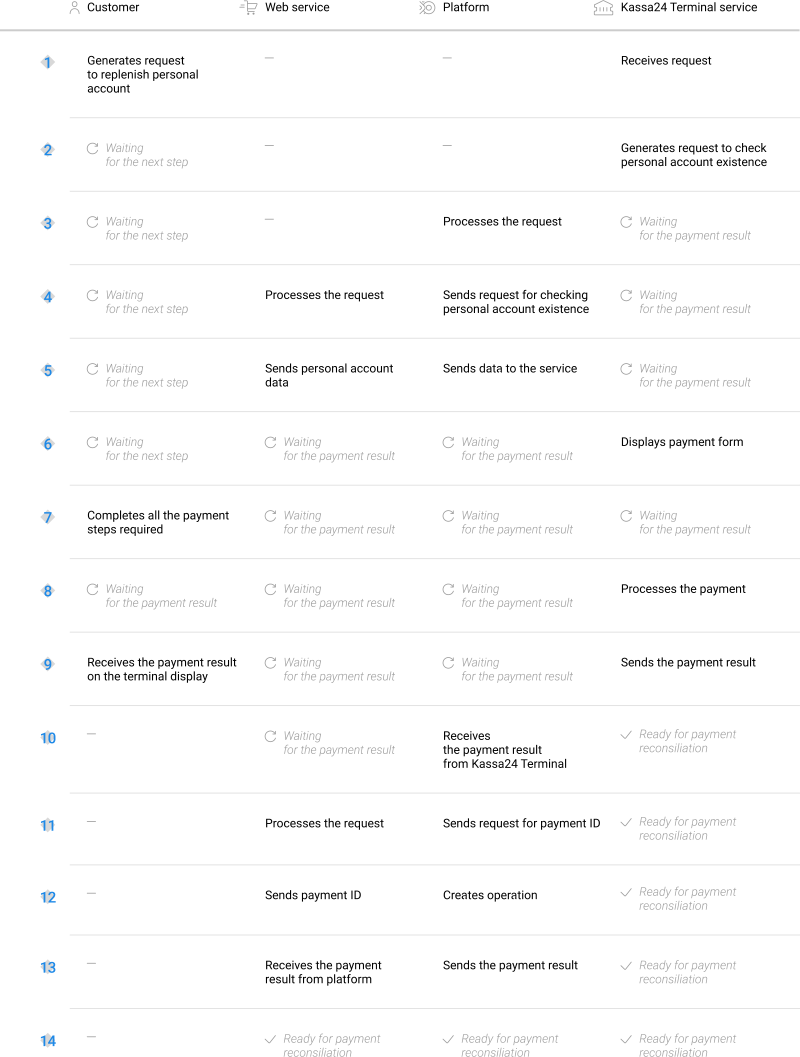
The sections that follow provide detailed information about what you need to perform payments and how you can analyze the information on payments and operations.
Purchase by using Gate
General information
In the Kassa24 Terminal method, when processing a purchase by using Gate, your system is required to do the following:
- Process the request for checking customer account existence.
- Send information about customer account existence.
- Process request for receiving payment ID on your system's side.
- Send payment ID.
- Get the callback with the payment result from the payment platform.
The following diagram provides the detailed picture of the payment processing procedure.
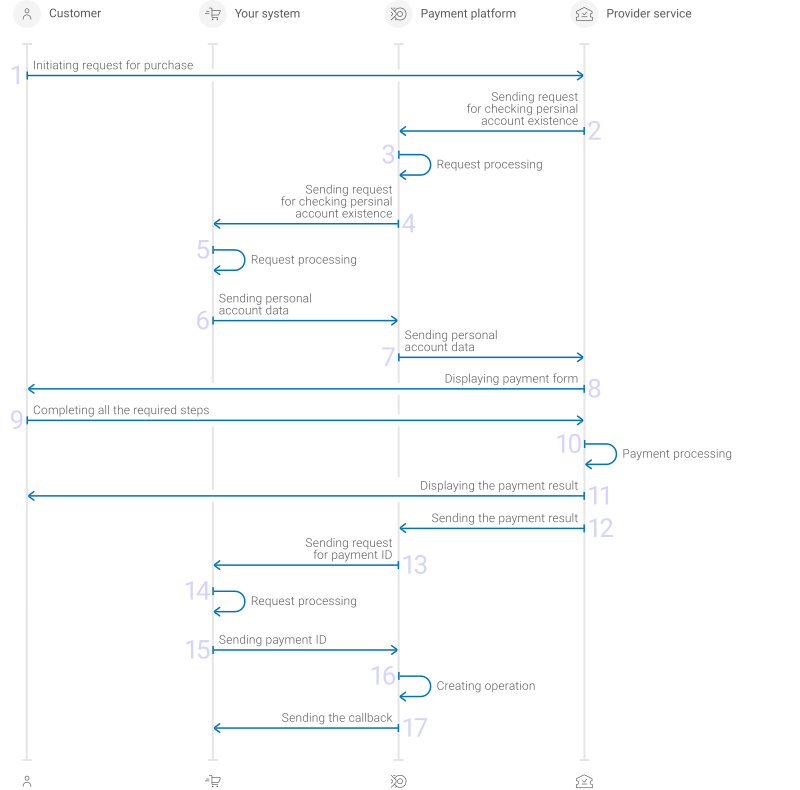
Figure: Purchase sequence by using Gate via terminal
- Customer selects a web service, the personal account in which he wants to replenish, and then enters his credentials in your system.
- The terminal sends request for checking customer account existence to the specified JetPay URL.
- The payment platform performs the initial request processing that includes validation of the required parameters and signature.
- The payment platform sends request for checking customer account existence to your system.
- The request is processed on your system's side.
- Your system sends response to the request.
- The payment platform sends customer account data to the Kassa24 Terminal service.
- The Kassa24 Terminal payment form is displayed to the customer.
- The customers pays by cash to replenish personal account.
- The payment is processed on the Kassa24 Terminal side.
- The Kassa24 Terminal service sends the payment result notification to the payment platform.
- The payment platform sends request to your system for payment identifier on your system's side.
- The request is processed on your system's side.
- Your system sends payment identifier to the payment platform.
- Operation is created on the payment platform side.
- The payment platform sends the callback to your system.
- The customer receives the payment result on the terminal display.
The sections that follow discuss in more details the request format and the Gate parameters to use in the Kassa24 Terminal payment method and provide the information on the format of callbacks with purchase results.
Request
verify to check the account's existenceThere are several things you need to consider when dealing with account top up requests in the Kassa24 Terminal method:
- To verify the existence of the customer account, the payment platform sends the
verifyrequest to your system URL using the HTTP method POST. - The request has the following parameters:
- type—the operation type in your system (always
verify) - customer_id—customer account ID in your system used for topping up from the customer account
- project_id—the project ID you obtained from JetPay
- signature—the signature for the request.
Figure: Example of the data from the request for verifying the customer account
{ "type": "verify", "project_id": 1234, "customer_id": "7123456789", "signature": "e19695449545fac562843ca06e7e0f3e51281ad6" } - type—the operation type in your system (always
- You need to send the response to the
verifyrequest synchronously. There can be two response options, confirm with your JetPay key account manager, which one is suitable for you.Response option 1 must contain the following parameters:
- code—response code (available codes are listed in the table below)
- currency—currency code in the ISO-4217 alpha-3 format
Your response can contain the following additional parameters:
- additional_customer_id—customer ID on your system's side, which is used for customer identification on the JetPay side
- error_description—user-friendly error description
- code—the response code
- additional_customer_id—the unique customer ID used for the customer identification in the JetPay payment platform.
- currency—the code of the purchase currency in the ISO-4217 alpha-3 format
- entities.id—contract ID
- entities.number—contract number for topping up
- entities.payment—purchase amount in minor currency units without any decimal point or comma except for cases where the currency does not have any minor currency units. If the currency has no minor units (that is, the number of digits for minor currency units is zero), then you must set this parameter to the amount in the major currency units. For the information on whether the currency has any minor units, see Currency codes. The parameter may not be required in some cases. Contact your account manager at JetPay for details.
- entities.status_code—contract status code. The default value is
0—online payment is allowed. A value other than0does not allow the payment to be accepted, but will allow the customer to see a preset text when selecting a contract for payment. Additional codes and messages are agreed upon individually, contact your JetPay key account manager for details.
Your response can contain the following additional parameters:
- message—the free-form description of the response code
- entities.info—an object with an arbitrary set of fields, used to display additional information to the customer. The structure is customizable, refer to your JetPay key account manager for more information.
- entities.min_payment—minimum allowed purchase amount in minor currency units without any decimal point or comma except for cases where the currency does not have any minor currency units. If the currency has no minor units (that is, the number of digits for minor currency units is zero), then you must set this parameter to the amount in the major currency units. For the information on whether the currency has any minor units, see Currency codes.
Table 1. Applicable response codes Code Description 0Success 204No outstanding debts found 400Signature error 404The customer account does not exist 500General error, the reason must be specified in the message parameter Here's an example of a response when the existence account verification is successful.
Figure: Example of the request response for the first option
{
    "code": 0,
    "currency": "KZT",
    "additional_customer_id": "ABCDE12345",
    "error_description":"example"
}
Figure: Example of the request response for the second option
{
    "code": 0,
    "currency": "KZT",
    "additional_customer_id": "ABCDE12345"
    "entities": [
        {
            "id": "12345",
            "number": "1234_ABC/01-01-2025/Abcdef12",
            "min_payment": 100000,
            "payment": 100000,
            "status_code": 0,
            "info": {
                "total_debt": 500000,
                "monthly_payment": 100000,
                "customer_name": "John Doe"
            }
        },
        {
            "id": "67890",
            "number": "5678_ABC/01-01-2025/Abcdef34",
            "payment": 0,
            "status_code": 204
        }
    ]
}
If the request cannot be processed or the requested account is not found, the response should contain the
404response code and the error description in themessageparameter.Figure: Example of the request response with an error
{
    "code": 404,
    "message": "Account does not exist"
}
check_deposit for the transaction IDThere are several things you need to consider when dealing with requests for the transaction ID:
- The payment platform sends the
check_depositrequest for the transaction ID to your system URL using HTTP method POST. - The request contains the following parameters:
- type—the operation type in your system (always
check_deposit) - project_id—the project ID you obtained from JetPay
- customer_id—customer account ID in your system used for topping up from the customer account
- amount—purchase amount in minor currency units without any decimal point or comma except for cases where the currency does not have any minor currency units. If the currency has no minor units (that is, the number of digits for minor currency units is zero), then you must set this parameter to the amount in the major currency units. For the information on whether the currency has any minor units, see Currency codes
- currency—code of purchase currency in the ISO-4217 alpha-3 format
- payment_method—the payment ID. The value of the parameter is always
kassa24 - signature—the signature for the request.
The following parameters are only necessary with the second
verifyresponse option:- entity_id—contract ID for topping up
- number—contract number for topping up
Figure: Example of the request for the transaction ID on your system's side
{ "type": "check_deposit", "project_id": 1234, "customer_id": "123456789", "entity_id": "12345", "number": "1234_ABC/01-01-2025/Abcdef12", "amount": 10 000,00, "currency": "KZT", "payment_method": "kassa24", "signature": "lY0LTSAzpR7zGce5qfYGacOuYlHANnkIR7mdOqRXJnL1kO0lUmkQ0YYLWRg==" } - type—the operation type in your system (always
- You must respond to the
check_depositrequest synchronously. There can be two response options, confirm with your JetPay key account manager, which one is suitable for you.Response option 1 must contain the following parameters:
- code—response code
- payment_id—payment ID unique on your system's side
Response may also contain the following optional parameters:
- error_description—user-friendly error description
- description—payment description
- customer_id—customer ID
Response option 2 must contain the following parameters:
- code—the response code
- payment_id—the payment ID unique in your system. This parameter is required for the response with code
0
Your response can have the following additional parameters:
- message—the free-form description of the response code
- description—the description of the payment
Table 2. Applicable response codes Code Description 0Success 400Signature error 404The customer account does not exist 500General error, the reason must be specified in the message parameter The response to the request for the transaction ID in your system must contain the response code and the unique transaction ID.
Figure: Example of the response with the transaction ID
{
    "code": 0,
    "payment_id": "payment_47",
    "description": "Success"
}
If the transaction ID cannot be found, the response must contain the response code and the error description in the
messageparameter.Figure: Example of the response with the information about an error
{
    "code": 500,
    "message": "Something went wrong"
}
Callback format
The Kassa24 Terminal method uses the standard format for callbacks to deliver purchase results. For more information, see Callbacks in Gate.
The following is the example of a callback with an information about successful 100.00 KZT purchase in the 2275 project.
Figure: Example of a successful purchase callback
{
    "project_id": 1234,
    "payment": {
        "id": "payment_47",
        "type": "purchase",
        "status": "success",
        "date": "2022-03-25T11:08:45+0000",
        "method": "Kassa24",
        "sum": {
            "amount": 10000,
            "currency": "KZT"
        },
        "description": ""
    },
    "account": {
        "number": "123456"
    },
    "customer": {
        "id": "customer_123"
    },
    "operation": {
        "id": 28,
        "type": "sale",
        "status": "success",
        "date": "2022-03-25T11:08:45+0000",
        "created_date": "2022-03-25T11:08:05+0000",
        "request_id": "9e32835fb27907e0b08569d7d150e387a16a80e336c5117242b5cf60a4e17839",
        "sum_initial": {
            "amount": 10000,
            "currency": "KZT"
        },
        "sum_converted": {
            "amount": 10000,
            "currency": "KZT"
        },
        "code": "0",
        "message": "Success",
        "provider": {
            "id": 12345,
            "payment_id": "123abc123-321",
            "auth_code": ""
        }
    },
    "signature": "U7HQO7ToISZhMPKdM4Xr4DSX2UuHp99rHrtaxkUKQtoYzFvoB3cs9CRd4xeYG2Q=="
}
Related topics
The following topics might be useful when implementing payments through Gate:
Analysis of payments results
As with other payment methods JetPay offers, when using this method, you have several options to analyze the information about payments and operations.
You can load and analyze all the necessary information in Dashboard (dashboard.jetpay.kz), for instance you can use the analytic panels in the Analytics section for this purpose.
Also, you can export the information for further analysis by using third party analytical tools. The following options are available:
- Dashboard allows you to download reports in CSV format by using the tools in the Reports section. You can perform export as a one-time or regular download of data to your local computer.
- Data API allows you to have payment information exported in JSON format and delivered to a URL you specify. The payment information is exported by means of sending requests to the /operations/get endpoint.
If you have any further questions regarding payment data analysis, contact JetPay technical support.